
Updated Sept. 26, 2026. Gemini privacy settings deserve a closer look before your next very personal prompt. This guide covers personal Google accounts; work and school settings may be controlled by an administrator.
Start with the controls below, then read our Gemini human-review explainer for the broader trade-offs. Treat an AI chat like a tool, not a locked diary.
Step 1: Open Your Gemini Activity
On a computer, open Gemini, then Settings & help → Activity. You can also open Gemini Apps Activity directly. Check that you are signed into the intended account.
The screenshot below shows an older interface. Follow the current labels in your account.
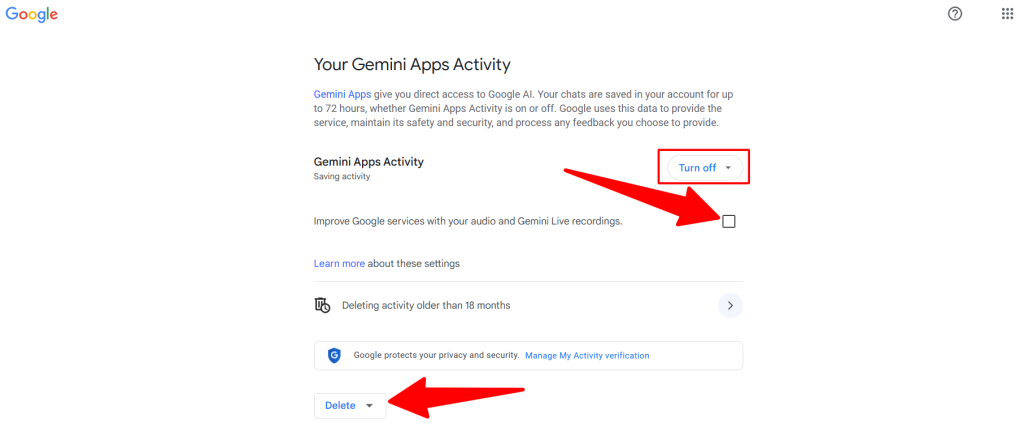
Step 2: Delete Saved Activity
Use Delete → All time, a recent period, a custom range, or an individual activity. Deleting saved activity does not turn off future saving. Already reviewed chats can remain for up to three years; deleting activity does not remove those copies.
Step 3: Turn Off Keep Activity
Near the top of Activity, select On → Turn off or Turn off and delete activity. Read the confirmation before choosing.
With Keep Activity off and no feedback submitted, future chats are not used to improve Google’s AI models. They can still be retained for 72 hours, with human review for safety and security. This is not a switch that blocks every use of your data.
Some connected apps become unavailable. Test your usual workflow afterward so you know which conveniences you are giving up.
Step 4: Check Audio and Live Recording Controls
In Activity, review the separate option for using audio and Gemini Live videos and screenshares to improve Google services. It is off by default. Do not turn Keep Activity on simply to follow an old screenshot.
Live transcripts are treated differently from recordings and can be used for improvement when Keep Activity is on.
Step 5: Choose an Auto-Delete Period
If you keep activity on, select its auto-delete control. Options include 3, 18, or 36 months, or no automatic deletion; 18 months is the default. Choose deliberately rather than treating the default as a recommendation.
Use Temporary Chats When Appropriate
For a conversation you do not want in recent chats, select Temporary chat beside New chat in Gemini on a computer. Temporary chats are not used to train Google’s AI models, but they are not an anonymous or zero-retention mode. Some features are unavailable.
Before starting, remove details the task does not need. “Help me word a difficult email” rarely requires pasting someone’s entire personnel file.
Understand the Remaining Limits
Feedback can include recent chat context and trigger human review. Other Google services have separate settings. Google also says Gemini settings do not control processing chats into anonymized data for service improvement.
Save the source links below and revisit them when the interface changes. A sensible privacy routine is to check the account, share less, and review the controls when your needs change.
Sources checked Sept. 26, 2026: Google’s activity-management instructions, Gemini Apps Privacy Hub, and temporary chat guidance.
Leave a Reply