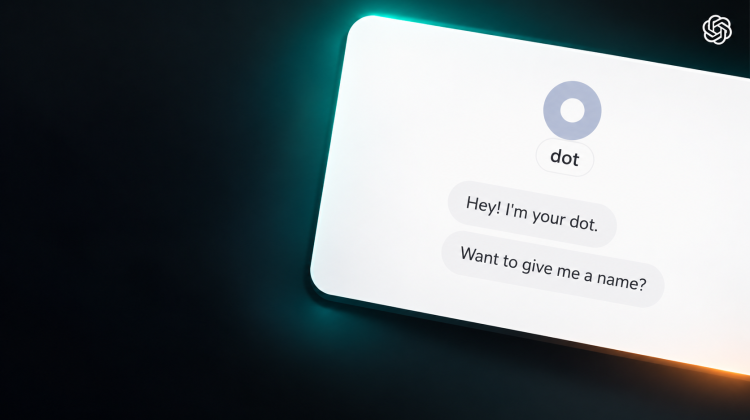
What if ChatGPT could keep a responsibility moving after you closed the conversation, then return with a result or the next decision? That is the idea behind dots, OpenAI’s newly rolling-out personal AI assistants.
For individuals, access currently starts with eligible Pro 100, Pro 200, and Pro 500 accounts; Business Premium and Enterprise have their own rollout conditions. This is not yet a feature every ChatGPT user will see. OpenAI’s availability guide explains the plan and regional requirements.
The interesting shift is from remembered context to ongoing responsibility. A dot can use connected sources, coordinate work between conversations, and bring back things that need your attention. That could reduce the work of repeatedly gathering information and asking what comes next. It also makes the question of what an assistant may access more consequential.
During our first look on October 6, 2026, our new dot made that idea tangible before we had finished choosing a name. It found a recent support email that needed a response. We thought we were waiting on support. Support was waiting on us.
We chose the name Mercury. An overlooked next step was a useful opening act; a “ChatGPT hit a snag” screen provided a less glamorous companion. Here is what felt different, where the experience stumbled, and how to think about the usefulness-versus-access tradeoff.
What Is a ChatGPT Dot?
A dot is an ongoing AI agent in ChatGPT, designed to keep work moving between conversations and bring back results or decisions that need attention. You can keep talking while it coordinates work, according to OpenAI’s tasks and memory guide.
The useful distinction is the responsibility you give it. A question might end with an answer; an ongoing responsibility can involve checking sources, preparing work, and following up as circumstances change.
Dots have their own cloud computer and browser. OpenAI documents research, documents, data analysis, and software work that can continue while your devices are off. Work requiring your personal computer has separate connection requirements, covered in the computer and app connection guide.
The appeal is follow-through. Our first session gave us a small, concrete example: finding something actionable we had missed.
From Alfred and Hermes to Mercury
We set up our dot through ChatGPT in a Windows desktop browser. The opening conversation introduced the assistant, explained that it could keep things moving between conversations, and asked whether we wanted to give it a name.
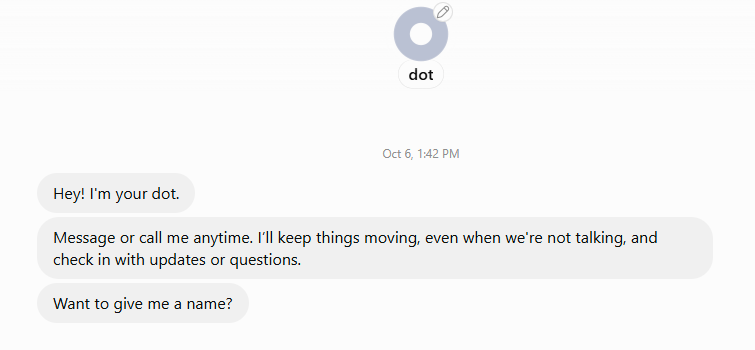
Naturally, we turned the naming question back on ChatGPT. Based on what it knew about us and how it understood its own role, what name would fit? It suggested Alfred or Hermes.
We split the difference and chose Mercury: a name that felt suited to a helpful assistant while keeping the messenger connection. Hermes was known to the Romans as Mercury, so we were staying in the same mythological neighborhood.
There was also the astronomy appeal. Mercury is the planet closest to the Sun, giving the name a little extra geek credibility. A service-minded messenger with a planetary alias? That worked for us.
Setup Includes Choosing Where Your Dot Can Work
One onboarding screen offered the dot’s own cloud computer and a local computer connection. The cloud option was selected in our screenshot; the local option displayed a “Get app” button.
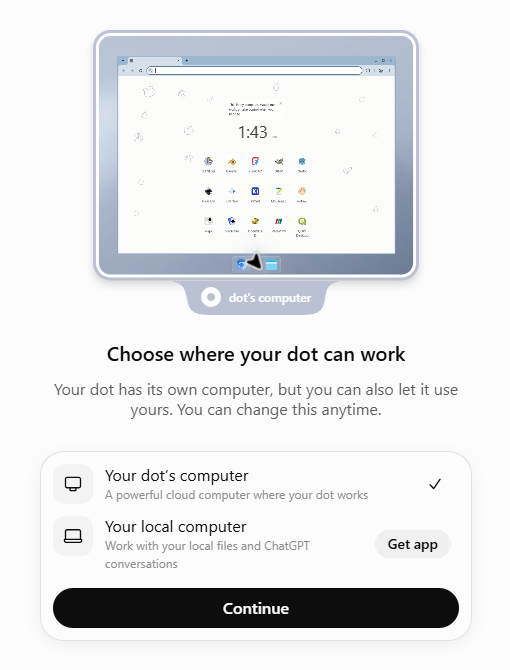
OpenAI’s setup guide describes optional app connections and personalization. Apps, messaging channels, and personal-computer access are separate connections; enabling one does not automatically enable the others.
Where an assistant runs and what it can access are different questions. Our screenshot captures the options offered, rather than confirmation of a later local-computer connection.
Desktop Access: Useful, but How Much Feels Comfortable?
Our onboarding happened in a browser. Installing the desktop app and allowing a dot to use your computer is a separate step, with a broader access decision: OpenAI describes access to local files, code, and apps through a connected computer.
According to the computer connection guide, local work requires the computer to be online with the ChatGPT app open. The connection persists between tasks. Going offline makes the computer unavailable; it does not revoke access. You can revoke the connection separately.
How invasive that feels depends on what lives on the machine and what you want help with. Someone comfortable sharing a few selected sources may prefer to begin with browser-based use and limited app connections. Someone who wants help with local documents may find the desktop connection worth exploring. Neither choice requires handing over every responsibility at once.
On a work computer, personal comfort is only part of the decision. Check your organization’s policies on installing software, connecting AI tools, and making company or client information available. Permission to use ChatGPT for a draft may not include permission to connect the device itself.
If your filing system is a collection of Downloads folders, desktop piles, email attachments, and cloud documents, this could be an interesting test. Ask a dot to inventory a permitted folder and selected connected sources, identify likely duplicates or related material, and propose a clearer structure. Start with copies or non-sensitive files, and require approval before anything is moved, renamed, or deleted.
That is a possible use case, not a result we tested during onboarding. The question would be whether Mercury can make scattered information easier to find while staying within the access and action boundaries you set.
Mercury Noticed the Next Step Before We Asked
While we were still getting acquainted, Mercury surfaced a recent support message, identified that a response was needed, and offered to help prepare a reply.
We had not assigned a substantive task. The discovery changed our understanding of an issue we thought was sitting with someone else.
Finding the next action was useful before taking any action. Mercury did not need to send a message or complete the whole process to help us move forward.
Mercury spotted a loose end and brought it to our attention. This was one useful discovery, rather than evidence that every important message will be caught.
Advertisement
Who Can Access ChatGPT dots?
Availability checked October 6, 2026: OpenAI describes a gradual rollout, so an eligible account may not see dots immediately. Its current availability guide lists the following:
| Plan | Documented availability |
|---|---|
| Pro 100, Pro 200, and Pro 500 | Users over 18 outside the European Economic Area, United Kingdom, and Switzerland |
| Business Premium | Rolling out worldwide |
| Enterprise | Rolling out worldwide; a workspace administrator must enable dots |
Create a dot in the desktop app or a desktop browser. After setup, mobile app access depends on the supporting update being available. Mobile web is not supported.
Our access establishes that we could use the feature that day, without implying an exclusive invitation or a place at the front of the rollout.
What Can a Dot Do Across Connected Apps?
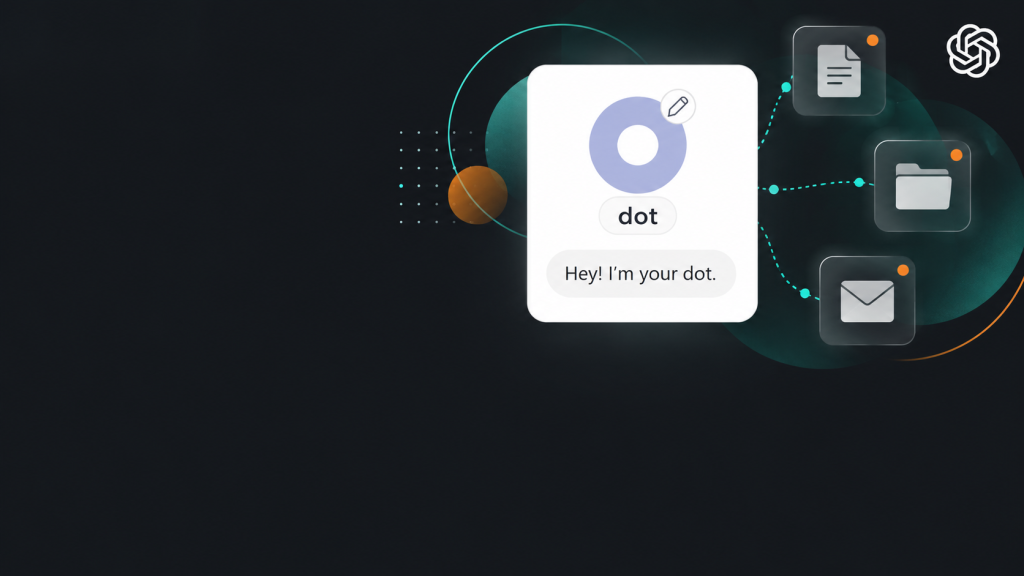
Our observed example involved finding an email and offering help with a response. OpenAI documents broader capabilities through supported plugins, including finding Gmail messages, working with Google Drive documents, and investigating GitHub issues. Actions depend on the connected account, permissions, and environment.
The documentation separates read-only proactive research from follow-up actions. Connecting a source alone does not create an event-monitoring task. Extended assignments and recurring responsibilities remain untested in this first look.
Does a ChatGPT Dot Remember Everything?
Memory became one of our biggest questions once Mercury started connecting information to useful next steps.
A dot uses selected conversation context, relevant ChatGPT memory, and its own saved notes. Those notes are separate from ChatGPT’s saved memory and are not a complete transcript.
ChatGPT’s general memory documentation also says it does not retain every detail. Some answers in our conversation needed clarification, reinforcing a practical habit: check important recollections against their sources.
There is no verified numerical Mercury context limit in the documentation reviewed for this article, and no basis to promise infinite memory. Continuity does not mean every detail is available in every interaction.
Project-Only Memory Still Matters
Mercury is not itself a ChatGPT Project. Project instructions and memory settings are different from a dot’s own controls.
The Projects documentation describes these boundaries:
- Project-only memory: Chats can reference other conversations inside the project, while outside chats cannot reference its conversations and project chats cannot reference outside conversations.
- Default memory: Access depends on the plan and settings. Enterprise and Edu project chats remain contained; other plans can allow broader references, subject to project-only restrictions.
We found no verified basis to say dots bypass those boundaries. A separately accessible Drive document can provide recorded project decisions without granting access to the original project-only chat.
Why Maintained Project Records Help
A project repository gives an assistant something concrete to reread: decisions, current status, open questions, and next actions. It also gives you something to inspect when a recollection seems incomplete.
The record still needs reconciliation. A newer email, live result, or correction may supersede yesterday’s status. Our support-email discovery illustrated how easily an assumed status can lag behind the evidence.
The record helps continuity; current evidence keeps it useful. For important work, ask where the status came from and whether any sources conflict.
Do You Need New Chats?
The documented experience supports an ongoing home-base conversation alongside focused task threads. Those tasks receive relevant instructions and context, rather than automatically inheriting every previous conversation.
That offers a way to keep responsibilities connected without treating continuity as unlimited active context. OpenAI says dot conversations do not count toward ChatGPT usage limits, while tasks started or managed in Work or Codex count toward those products’ limits. That usage policy is separate from how much context is available in a particular interaction.
We did not verify an ability to create chats inside existing ChatGPT Projects or move the Mercury conversation into one. A written handoff is a practical route for carrying work across that gap: record the relevant decisions, source material, and next steps, then provide the brief in the destination project.
Yes, We Encountered a Snag
Our first experience included an error screen with the message “ChatGPT hit a snag,” followed by an instruction to try again.
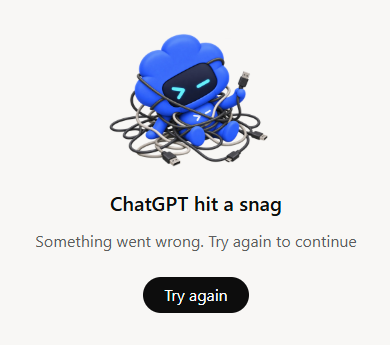
The accompanying illustration showed a blue character tangled in cables. A fairly charming depiction of software having a moment.
The screenshot documents friction in our session, without identifying the cause or how often it occurs. The feature is newly rolling out, but that alone does not explain the error. It took multiple hard refreshes after clicking “Try again” over and over before it finally decided to work again.
An assistant offering ongoing help still needs a workable way for users to recognize failures and check what happened.
What Still Needs a Human?
OpenAI’s controls and permissions guide says actions affecting accounts or sharing information undergo automatic review. A dot may proceed, request approval, or hand a step to you. Permission to draft a reply does not authorize sending it.
Privacy controls matter, too. ChatGPT data settings apply to eligible dot conversations and work. OpenAI says proactive research and private notes are not directly used for model training; information incorporated into eligible conversations or tasks follows the applicable data settings.
Review the actual output and any reported errors. A completed run alone does not establish that the result was achieved or delivered.
For a practical way to define that review, see our guide to mapping the task, data, and human responsibilities. Then use a small AI pilot to test results against a clear goal.
Our First-Look Verdict
Mercury’s most useful opening move was small: it found a response we owed. That is enough to make the idea interesting.
Our next test is one clearly defined responsibility, with explicit approval boundaries and results we can verify over time.
For day one, Mercury found something we had missed. It also hit a snag. Both belong in the first look.
Leave a Reply